
Zotero helps you add and organize citations as you write in Word, Google Docs, Libre Office, and beyond.
To use Zotero while writing, you will need to have the app open on your device
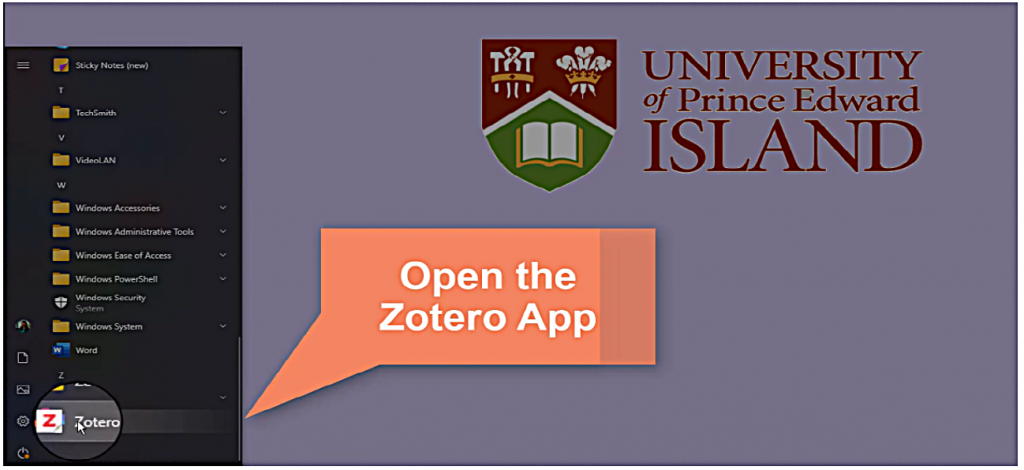
and synced to your account.
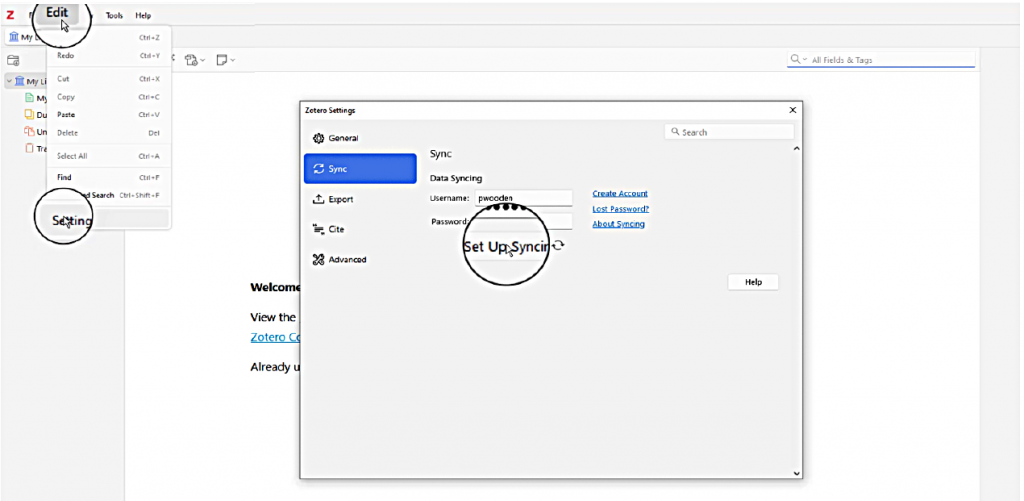
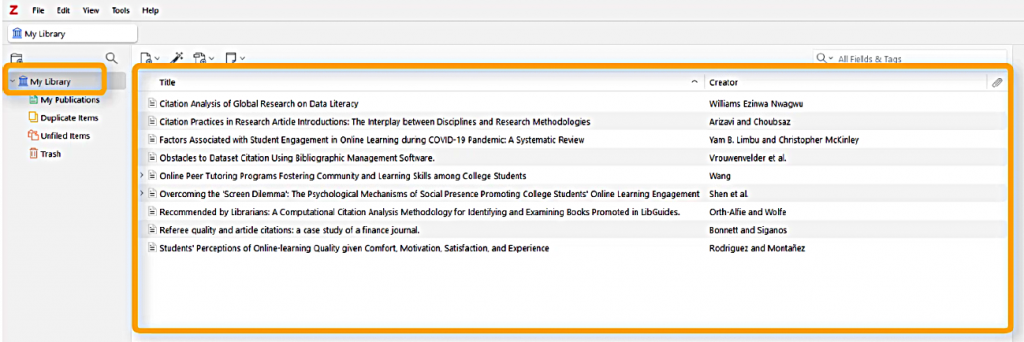
The citations you’ve already added to Zotero will be listed here.
If you need to add additional sources as you’re writing and researching, you’ll always add them in the Zotero app, and then they’ll be available to the plugin.
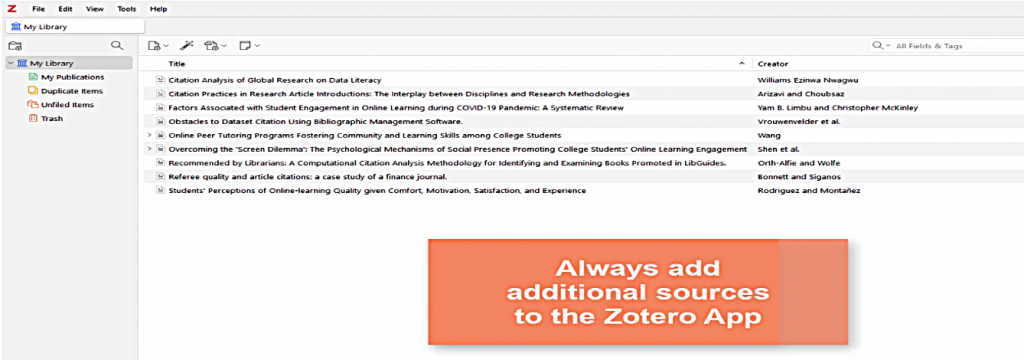
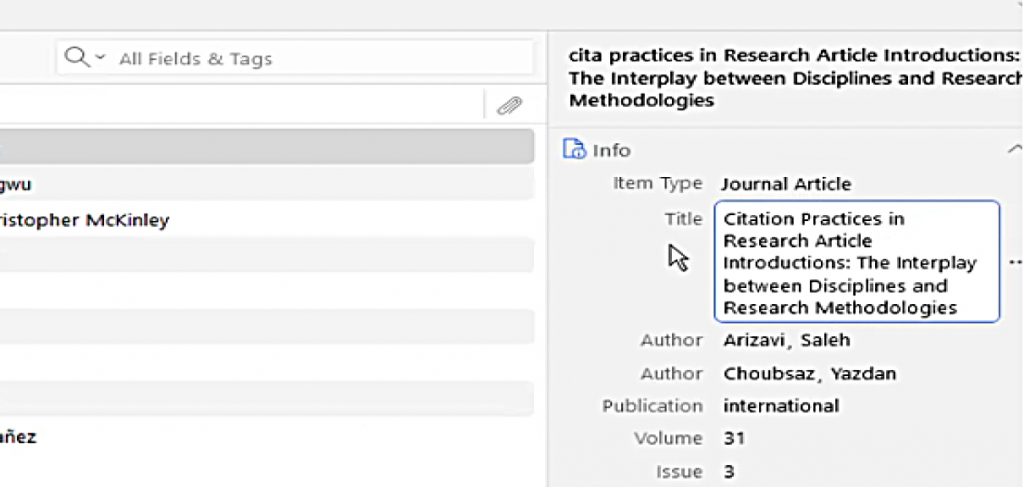
The app is also where you should correct any errors and add missing information.
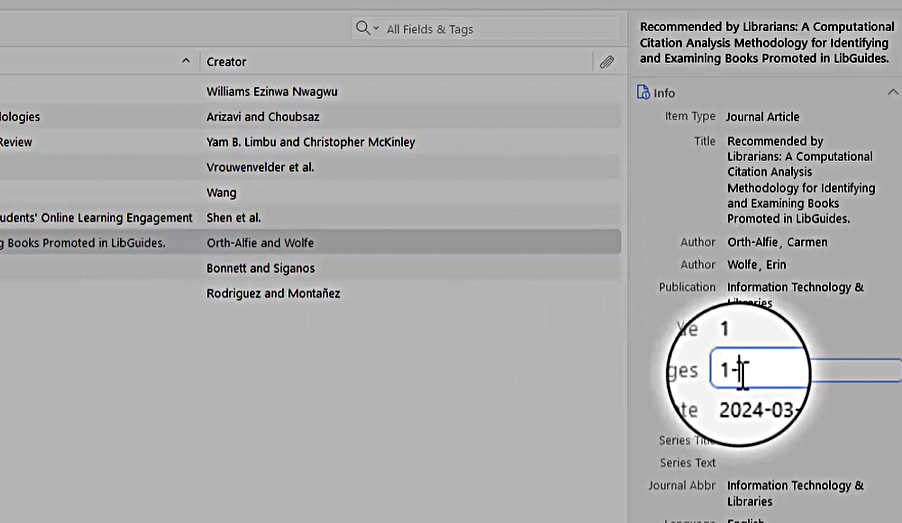
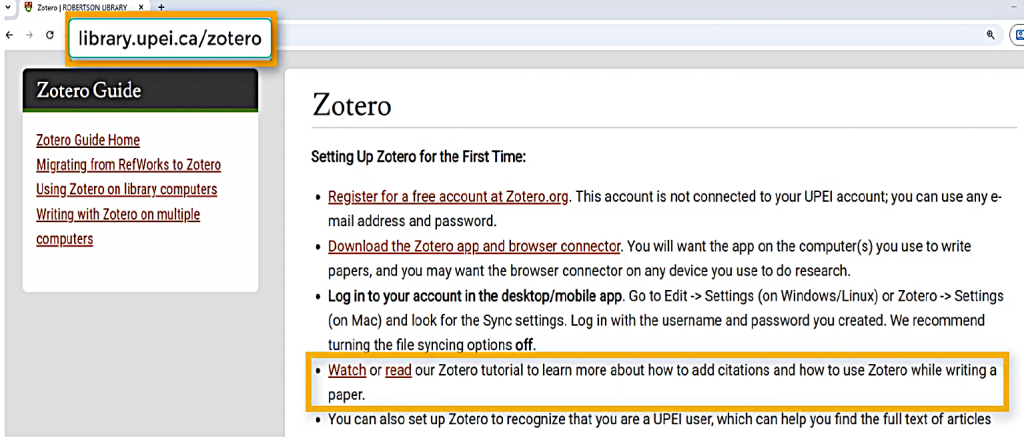
We have more information about adding sources to Zotero on our website.
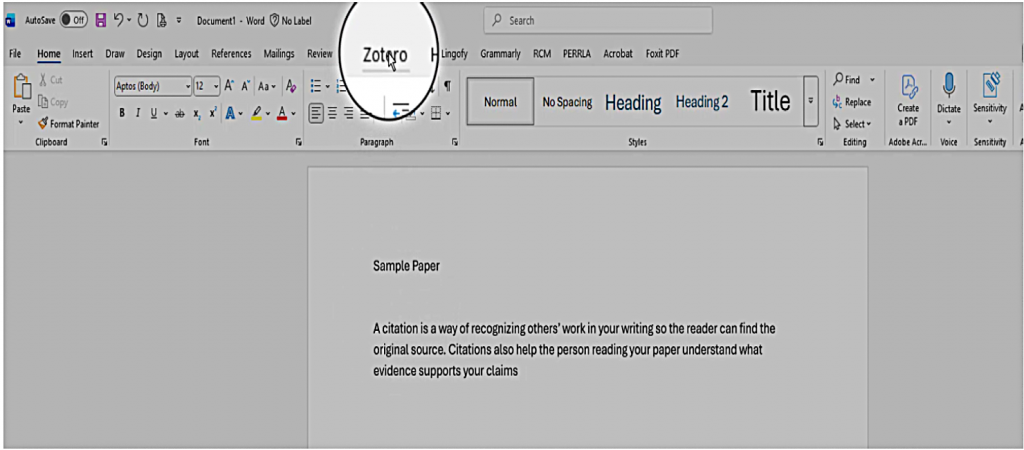
In this video, I’ll demonstrate how the Zotero plugin works in Microsoft Word. Other word processors have similar plugins available.
When I’m ready to insert my first citation, I choose the Zotero menu option,
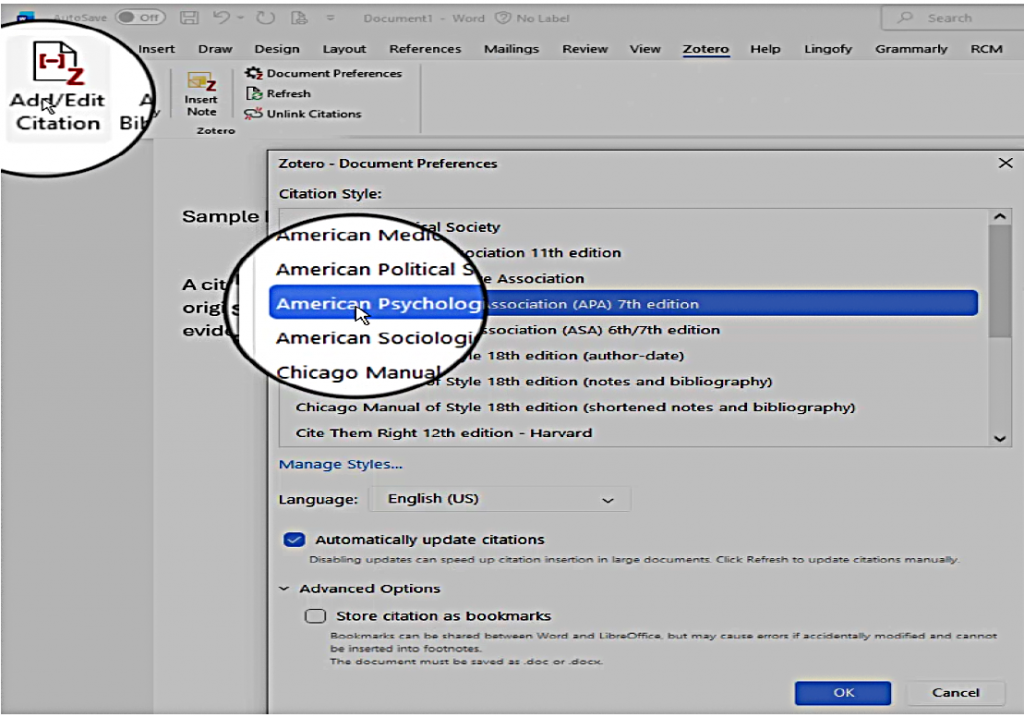
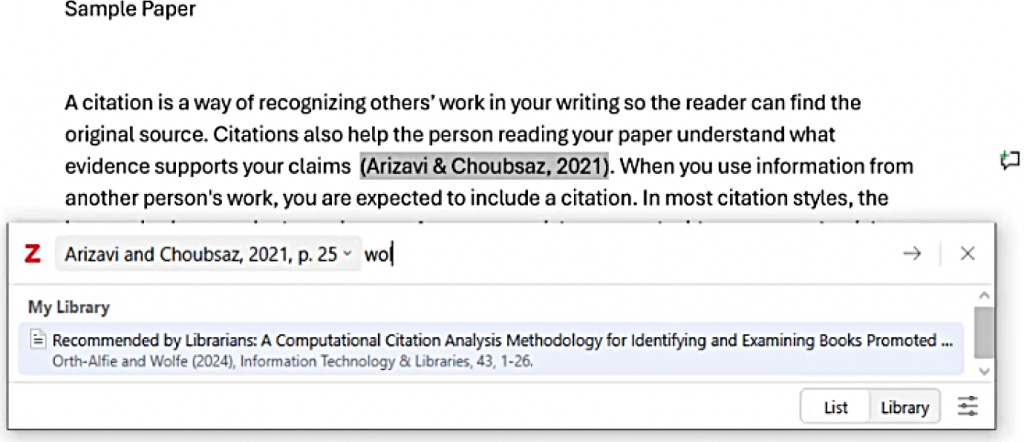
then “Add/Edit Citation.” A menu will pop up that asks me to choose the citation style I want to use. For now, I’ll use the APA style.
I will search for the source I want to cite. I can type in the author, title, or other key information.
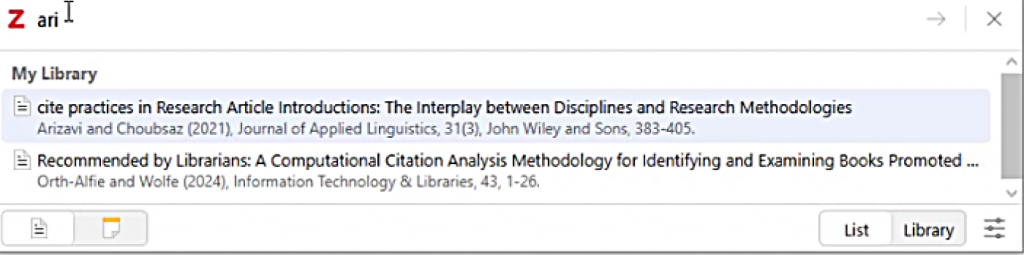
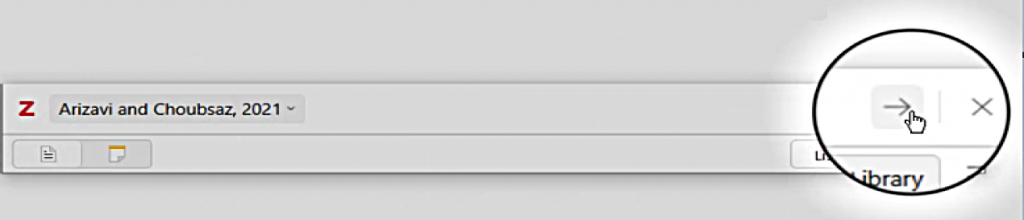
When I see the right source, I’ll select it and then press return or the arrow button to insert that citation.
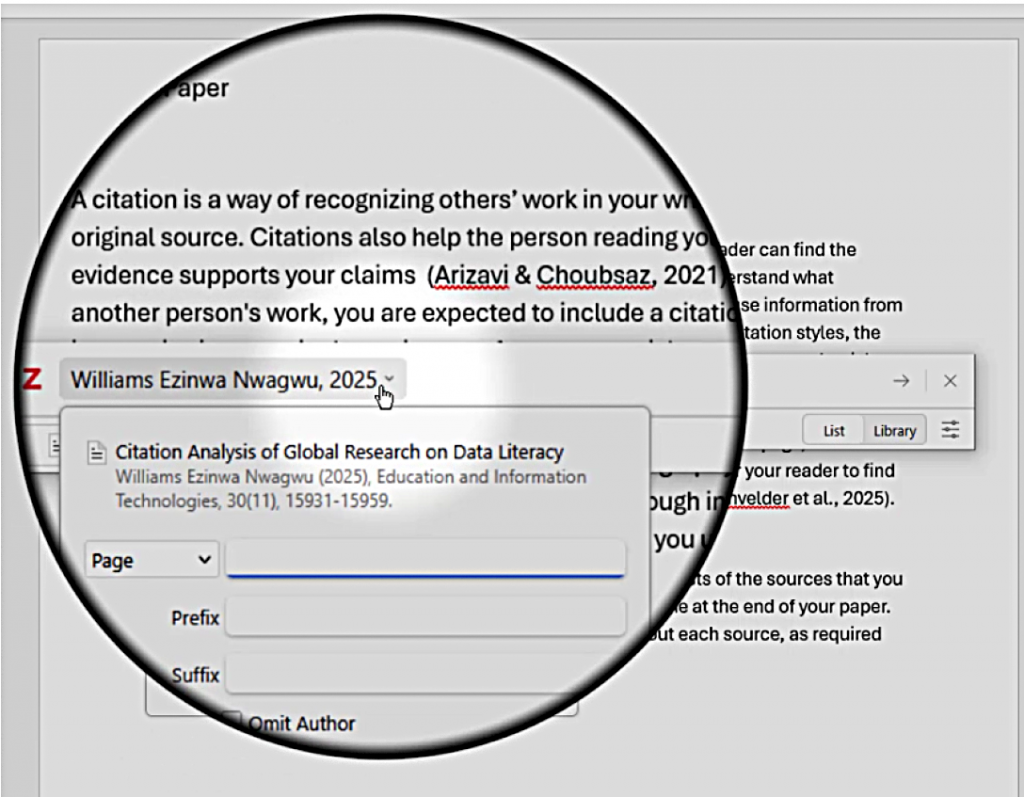
As I keep writing, I can continue to insert citations in this way. If I want to add a page number or a range. I can click the drop-down arrow after the source and add the page number.
Sometimes, I may need to edit a citation. I will highlight the citation and then choose “Add/Edit Citation.”
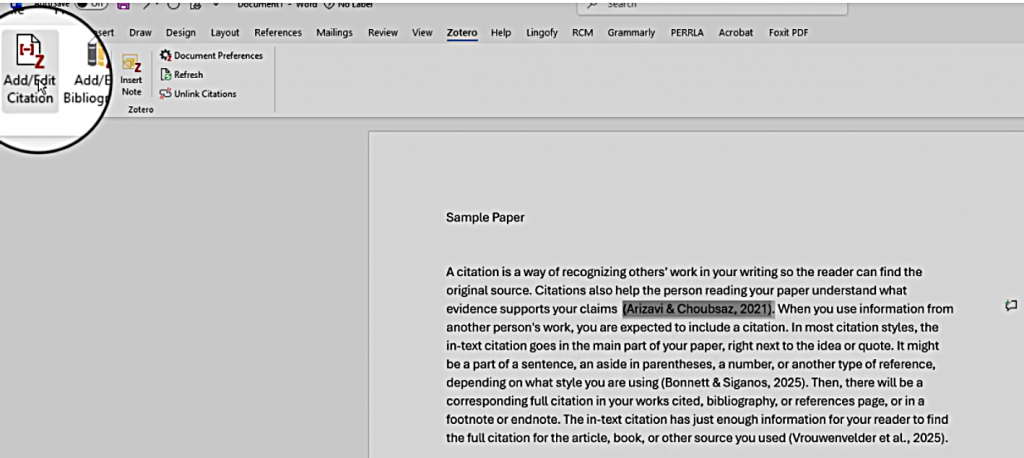
I can add or remove page numbers, add an additional source to this citation, or even change which source I’m citing.
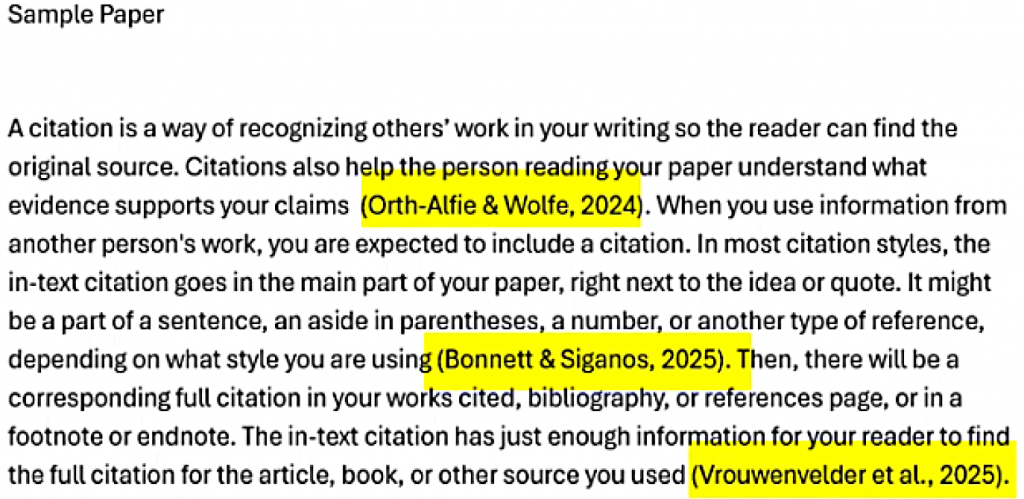
You’ll notice that so far, I only have in-text citations and don’t have a reference list or bibliography.
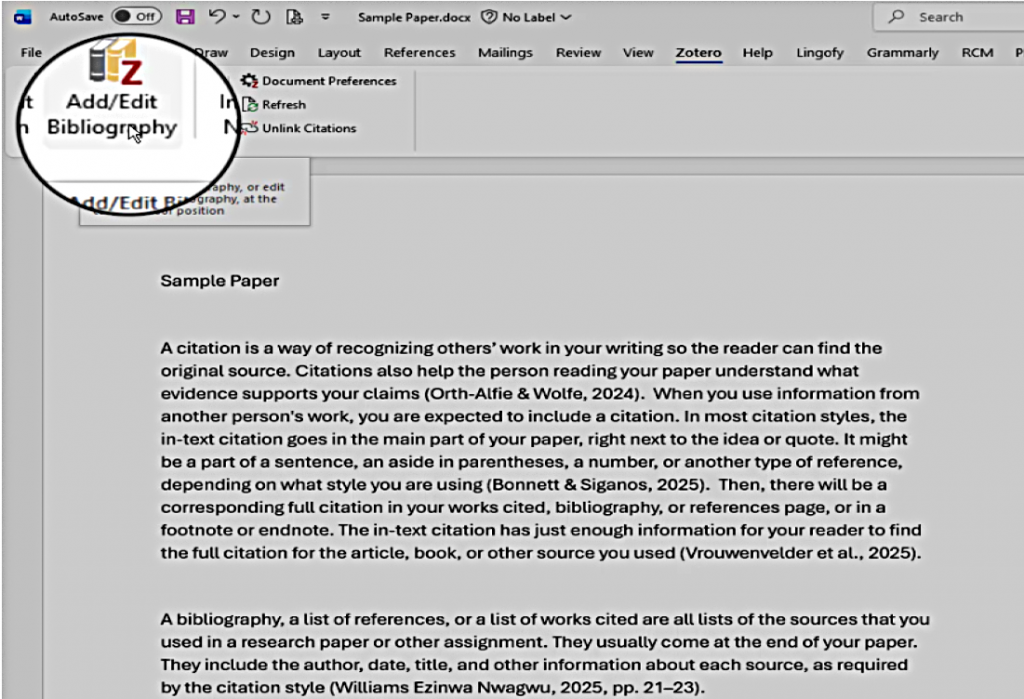
I need to insert that separately at the end of my paper using the “Add/Edit Bibliography” button.
Zotero will create this bibliography based on the citations I’ve inserted so far. It’s still my responsibility to make sure I’m following the style guide in terms of putting the reference list on its own page, giving it the correct title, and so on.
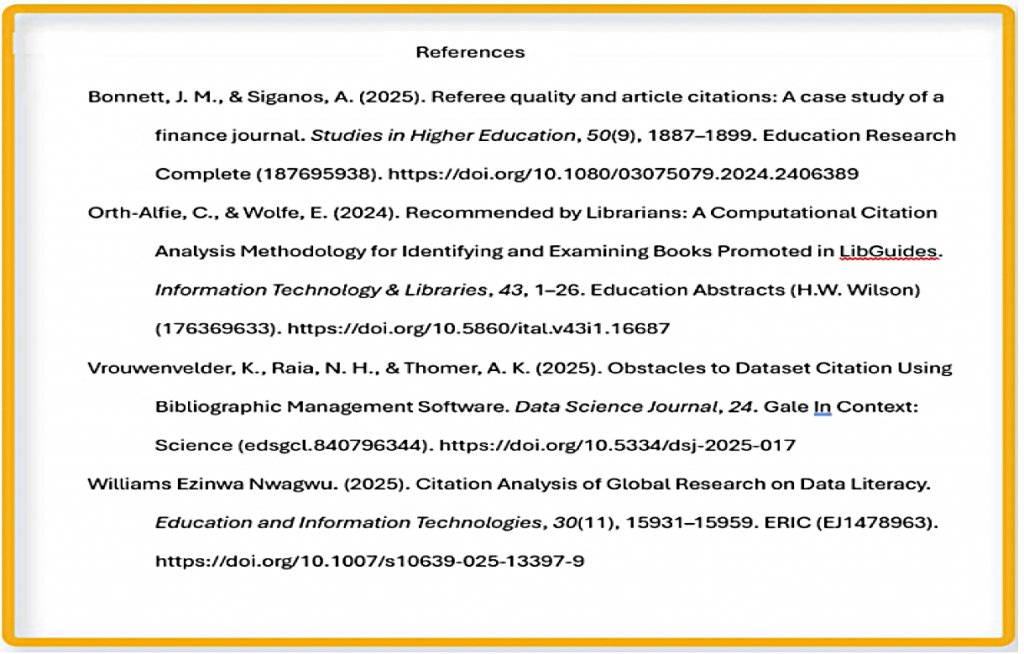
When I keep writing and add an additional citation to my paper, Zotero will automatically add that source to my bibliography in the correct order.
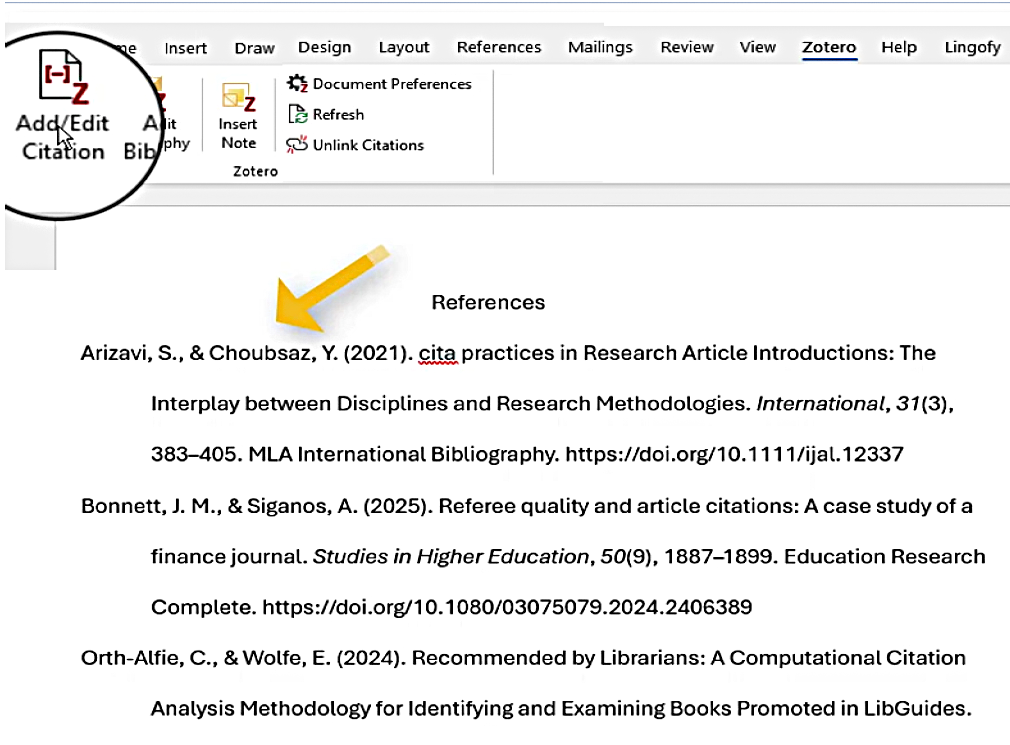
If I notice any errors in the citations,
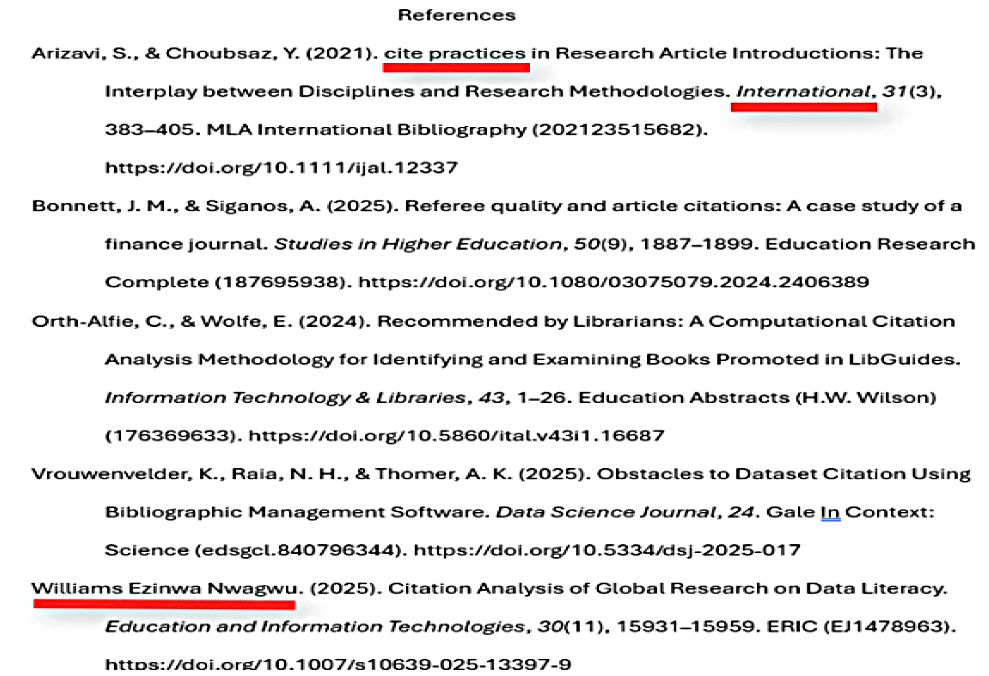
I can correct them in the Zotero app
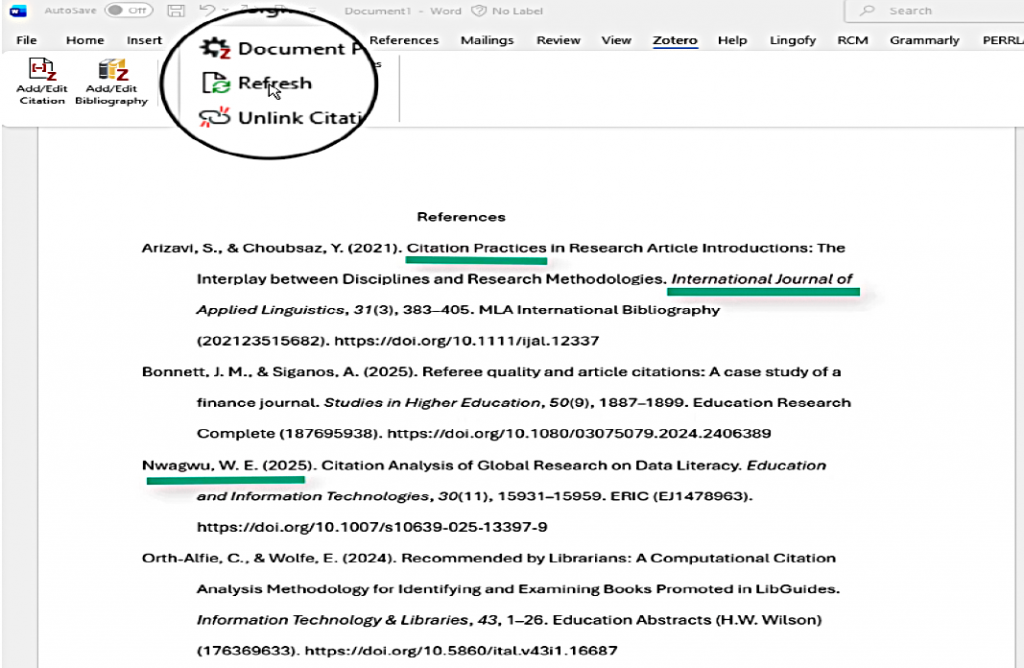
and then use the “Refresh” option to make those changes throughout my paper.
If I need to change styles after I’ve started my paper, Zotero can handle that. I will choose the “Document Preferences” button and then select the style I want. Let’s turn my APA paper into a Chicago notes-and-bibliography style paper.
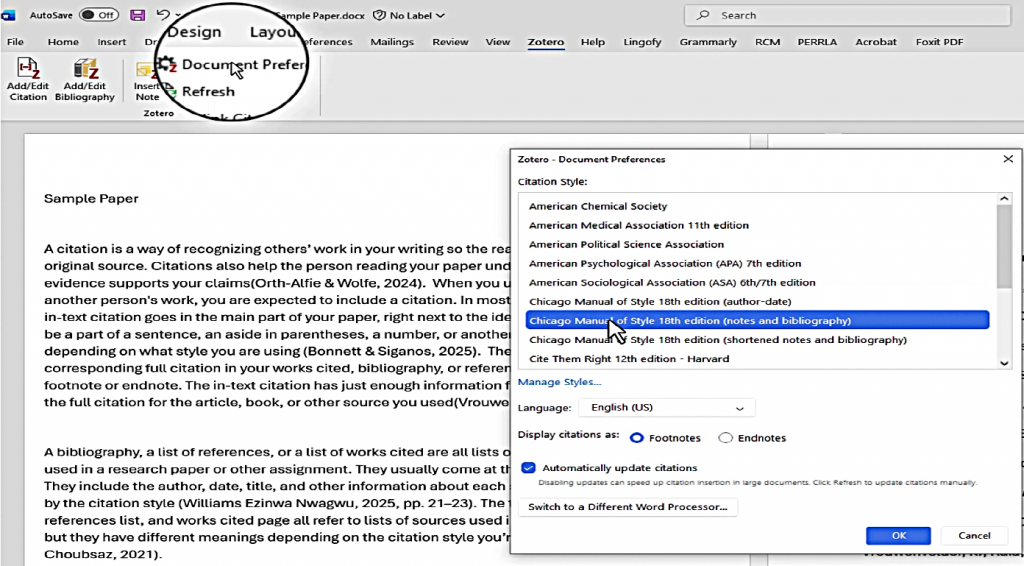
The Zotero plugin will change my parenthetical citations into footnotes and update the citation format in both my in-text citations and my bibliography accordingly.
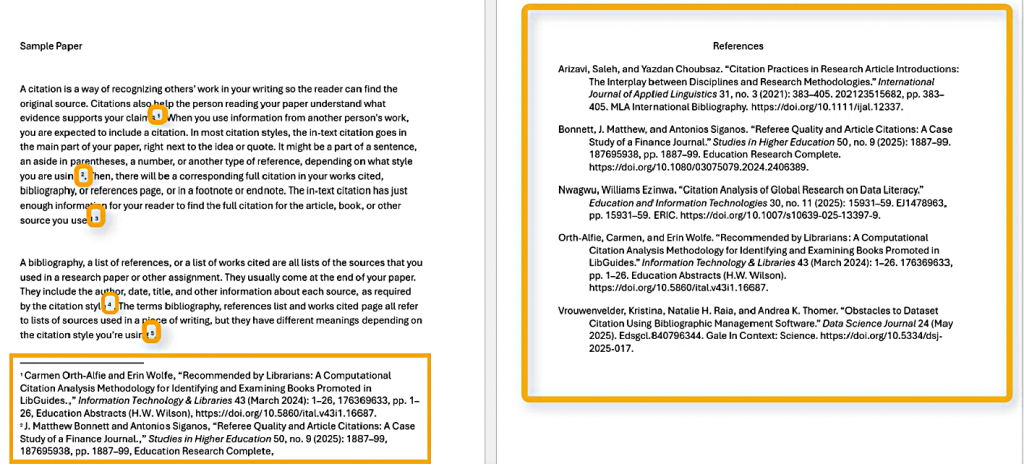
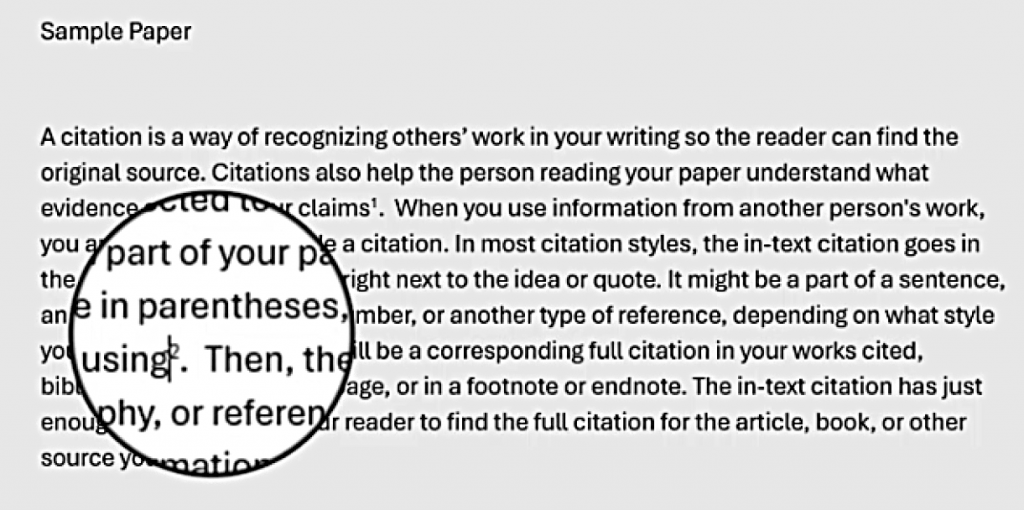
I may still need to make some minor changes in my paper, such as removing the space before the footnote numbers in the text.
In fact, even if I haven’t switched citation styles, it will be important for me to proofread my paper, including the bibliography, before I turn it in.
If I’m working in a group and another person needs to work on this paper, they will also be able to add citations from their Zotero account using the Zotero plugin. If they are using a different word processor, such as Google Docs, there are steps I can take to make sure that my Word document is usable.
More information is available on our website at library.upei.ca/zotero in the “Writing with Zotero on multiple computers” section.
If you only need to create a bibliography, or if you’re writing a relatively short paper, you may find the ZoteroBib tool, available at zbib.org, more useful. This tool will generate the citations for your bibliography or reference list, and then you can copy and paste them into your paper.
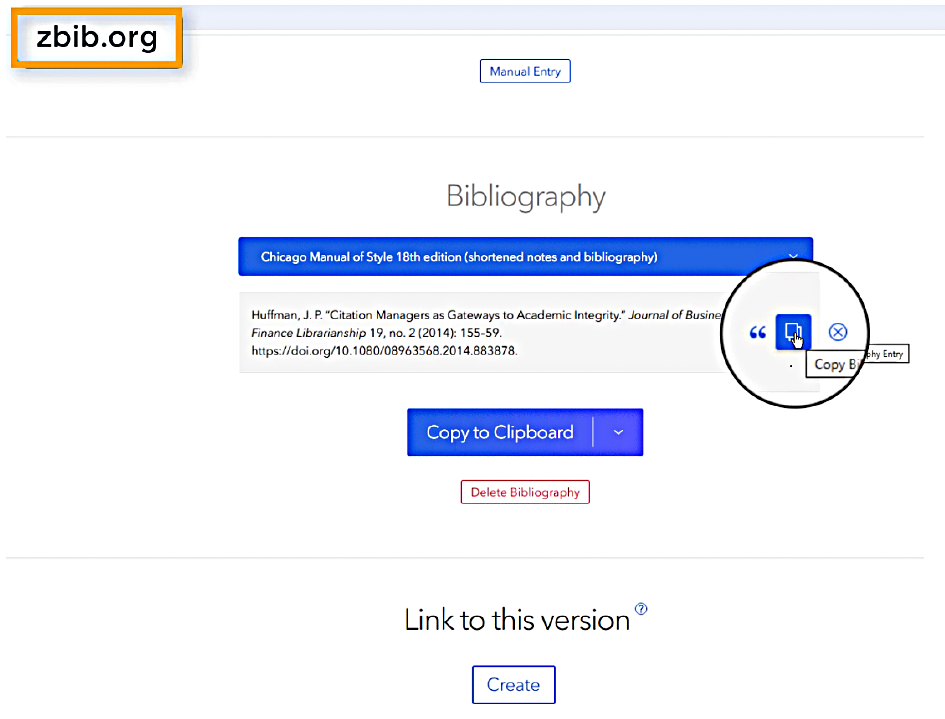
You do not need a Zotero account to use ZoteroBib, and your citations will not be saved outside of your browser session unless you use the “Create a link to this version” option.
For more information about Zotero and about common citation styles, visit our website at library.upei.ca.
If you need more help AskUs at the service desk, phone us at (902)-566-0583, send an email to reference@upei.ca, or use the chat tool on the library website.
We are here for you.
A video version of this tutorial is also available.